
Start here
How to use Sell Your Own Prompts and Skills
An ALEXIS guide with templates for turning the AI prompts and set-ups you already use into a product.
Unzip the download
Your purchase comes as one .zip file (a packed folder). Find it in your Downloads folder and unpack it first. The files do not work properly from inside the zip.
- iPhone / iPad: open the Files app, tap the zip once and it unpacks.
- Android: open Files by Google, tap the zip, then Extract.
A computer is easiest, but everything also works on a tablet or phone.
Open sell-prompts-and-skills.html
Open the unpacked folder and double-click sell-prompts-and-skills.html. It opens in your internet browser (Chrome, Edge, Safari or Firefox). It is a normal web page saved on your computer: no app to install, no account, no internet needed after the download.
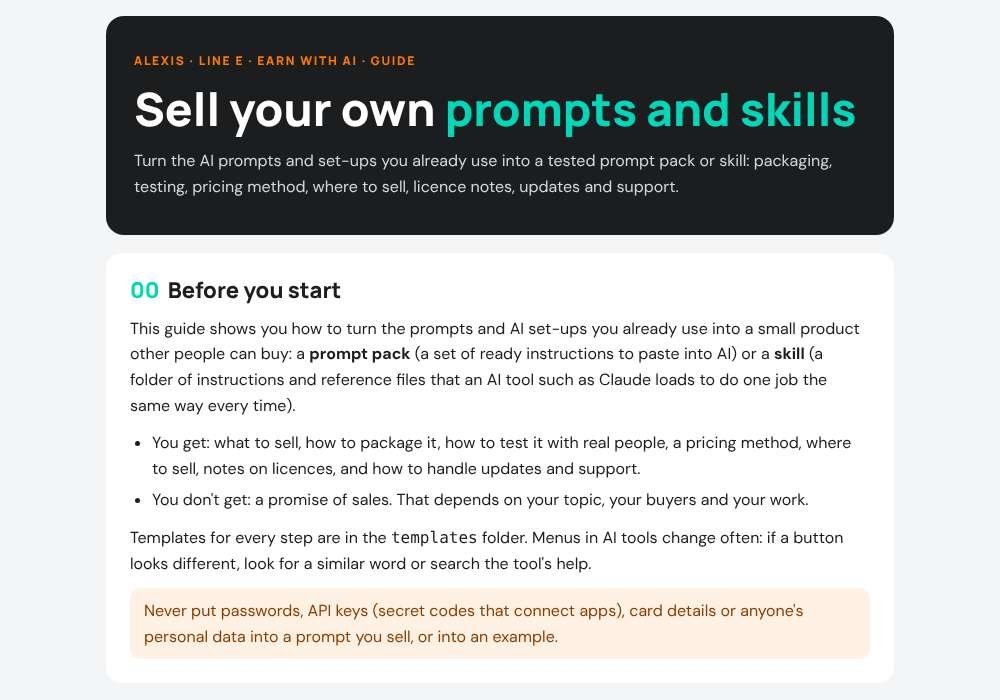
This is what you will see
Use it
- Read it on screen and follow the steps in order. Use the PDF if you like to print and write on paper.
Add the skill to Claude (5 minutes)
A skill is a set of instructions that teaches the AI one job, your way. You add it once and use it in every chat.
- Go to claude.ai and sign in.
- Open Settings, then Capabilities. Turn on Code execution, then Skills. (Skills come with some Claude plans only; check yours.)
- Click Upload skill and choose templates/skill-template/my-skill.zip. Upload the zip as it is: do not unzip it.
- Open a new chat and type one of the commands from this guide.
Code execution ●
Upload skill
Or use it in ChatGPT or Gemini (5 minutes)
- Double-click templates/chatgpt-and-gemini-version-template.txt. It opens in Notepad (Windows) or TextEdit (Mac).
- Copy Part 1: everything between the first two lines of ~~~~.
- ChatGPT: click Projects, then New project, then Instructions, and paste. Gemini: click Gems, then New Gem, then Instructions, and paste.
- In the same project or Gem, upload the whole .txt file as a file (Knowledge).
- Start a chat there and type a command.
The other files
- .txt files are plain text. Double-click: they open in Notepad (Windows) or TextEdit (Mac). Copy what you need and paste it into your AI chat or your document.
- .md files are templates in plain text. Right-click, Open with, then Notepad or TextEdit. Or copy everything into Word or Google Docs and fill it in there. The # signs mark headings; you can delete them.
Start in 3 steps
- Read section 01 of the guide and do the one-job test.
- Choose: prompt pack or skill. Copy the matching template.
- Build, then test with 3 real users before you list it anywhere.
New: add your own documents (optional)
The product page now has a box called Add documents to this review. It reads your own files on your computer, so your answers can use your real numbers. Nothing is uploaded or sent.
- Open the product page (the same page as in step 2).
- Scroll down to Add documents to this review.
- Click Attach a file, Attach multiple files or Choose a folder.
- Read the file list. A file marked not read was not used.
- Type the period, the currency and the units, then confirm them.
- If the page has number boxes, click Use confirmed document values and approve only the numbers you want.
- For AI products: copy your answers and the document notes into your AI chat. Ask it to say which document each point comes from.
Works with PDF (with selectable text), Excel (XLSX), Word (DOCX), CSV, TXT, MD and JSON. Scanned or locked files are flagged. The notes clear when you refresh the page and your files are never changed. Keep the folder ALEXIS-document-reader next to the product folder: the page needs it.
What is in your download
| sell-prompts-and-skills.html | The guide: what the skill does, its commands and an example. |
| sell-prompts-and-skills.pdf | The same content as a PDF, to read or print. |
| templates/skill-template/my-skill.zip | The skill file for Claude. Upload it as it is, do not unzip it. |
| templates/skill-template/my-skill/ | The same skill, unzipped, so you can read its rules. |
| ALEXIS-document-reader/ | Helper files for the Add documents box. Keep this folder where it is; you do not need to open it. |
| READ-ME-ATTACHMENTS.txt | Short help for the Add documents box. |
Something not working?
- The file opens as code, or in Word or Notepad.
- Right-click it, choose Open with, then Chrome, Edge, Safari or Firefox.
- Nothing happens when I type or click.
- You are probably still inside the zip. Unzip it first (step 1), then open the file from the new folder.
- Still stuck?
- E-mail contact@alexis-digital.com with the product name and a screenshot of what you see.
Never paste passwords, card details or your customers' private data into an AI chat. No results are promised: read everything before you use it in your business.
See Sell Your Own Prompts and Skills → All how-to-use guides